
How to download Audit log files in Hitachi VSP through Storage Navigator
How to download Audit log files in Virtual Storage Platform (VSP) through Storage Navigator
- We can download audit log and syslog files to Storage Navigator computer or transfer audit log files to FTP servers or syslog servers.
- Always download audit log files once they reached their threshold limit (70%) to prevent the old data from being overwritten.
- To download audit log files, first login into Storage Navigator(SN)
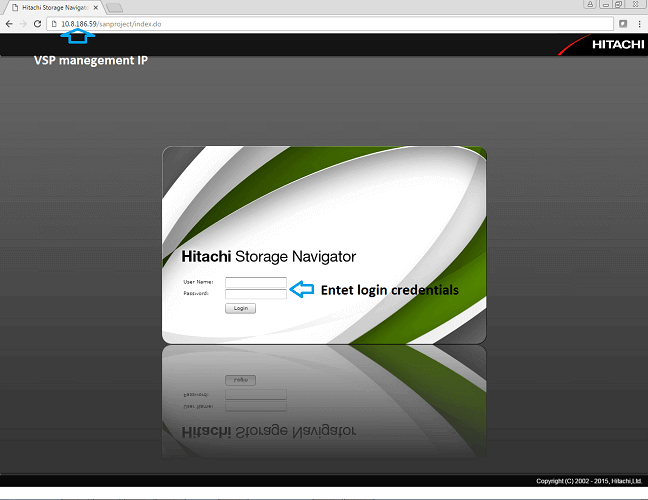
- Once logged in. please check for the audit log in the top right corner.

- represents the number of saved lines below the threshold.
- represents the number of saved lines above the threshold, but the data is still being saved.
- represents the number of saved lines has exceeded the maximum, and data is being lost.
- If it crossed the threshold level then click on audit log. One popup will display with a download option.

 represents the number of saved lines below the threshold.
 represents the number of saved lines above the threshold, but the data is still being saved.
 represents the number of saved lines has exceeded the maximum, and data is being lost.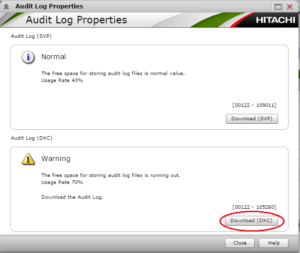
- Click Download(SVP) and Download(DKC). It opens the Ready to Download box.
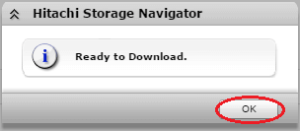
- Click on ok
- It opens the Save As box.
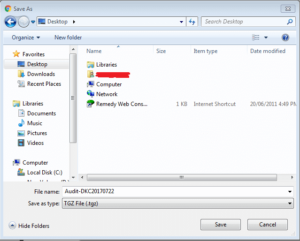
- Select a destination path for the file and click Save. It takes from one to five minutes to download the audit log file.
- Click Close.